 NewsLoop
Articles and the editor
This guide covers everything you do with stories in the admin: finding them, writing them, working on them with others, and taking them from draft to published. Articles live under Newsroom → Articles. Sections, tags and series are set up under Organise, and who may do what is set under System → Roles.
The Articles list
Newsroom → Articles lists every story you are allowed to see. People who cannot see everyone's articles (contributors, reporters and authors, unless you change their role) see only the ones they wrote or created.
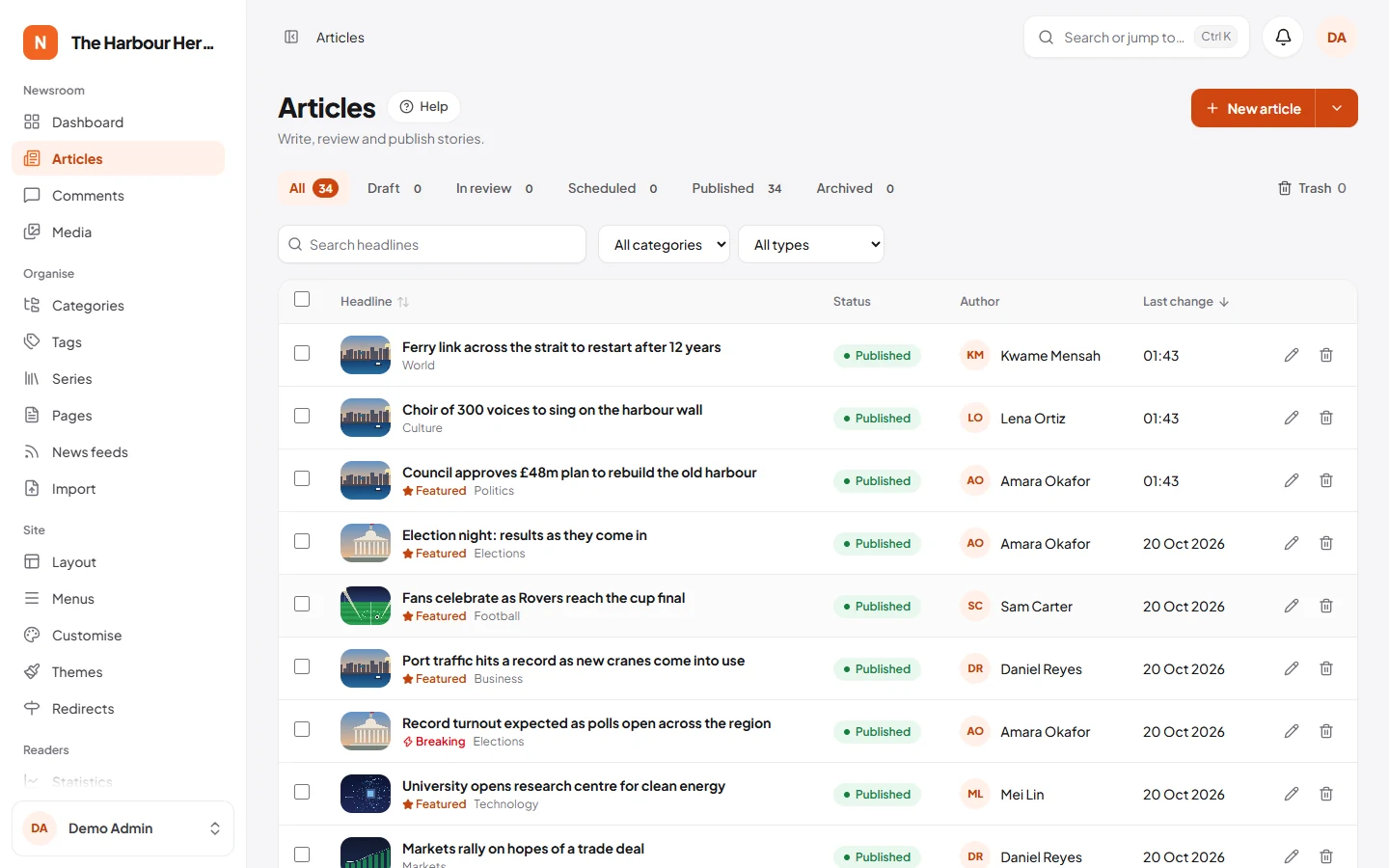
- Tabs across the top filter by status: All, Draft, In review, Scheduled, Published and Archived. Each shows a count.
- Search headlines finds articles by headline or address.
- Filters narrow the list by category (a section includes the sections inside it), by type, and by language when your site has more than one.
- Sorting: click the Headline or Last change column heading.
- Each row shows the picture, author and status, plus Breaking and Featured markers, the sections, and a scheduled article's time. When someone has the article open, the row says "… is editing".
Trash
Deleting an article moves it to the trash. Nothing is lost until you delete it from there.
- Click the bin icon on a row, or tick several rows and click Move to trash.
- Click Trash at the right of the tabs to see deleted articles.
- Click Restore to bring one back, or Delete permanently to remove it and its history for good. Tick several rows to do either in one go.
You must restore a trashed article before you can edit it. Bulk actions skip articles you may not change and articles someone is editing, and say how many were skipped. Only editors and admins can delete permanently.
The trash is not emptied by itself. The cron job does delete drafts that were left as "Untitled" with no text for seven days.
Starting an article
Click New article. The arrow next to it starts another type:
| Type | Use it for |
|---|---|
| Article | An ordinary story. |
| Video | A story led by a video. Paste a YouTube or Vimeo address in Video link, and it replaces the featured image at the top. |
| Podcast / audio | An episode or audio story. |
| Photo gallery | A story told mostly in pictures. |
| Live blog | A story that grows with timed updates. See Live blogs. |
The type also decides which home page blocks and app screens show the article, such as a "Videos" block. You can change it later under Publishing → Type. A new article starts in your site's default language. For other languages, see Translations.
Writing in the editor
- Headline at the top. An article needs a real headline before it can be submitted, scheduled or published.
- Standfirst below it: one or two sentences that sum up the story.
- The story in the large box. The line under it shows the word count, the reading time and a reminder that Ctrl+S saves.
- Summary under the story. It is shown on section pages and in the app. When it is empty, the first lines of the story are used.
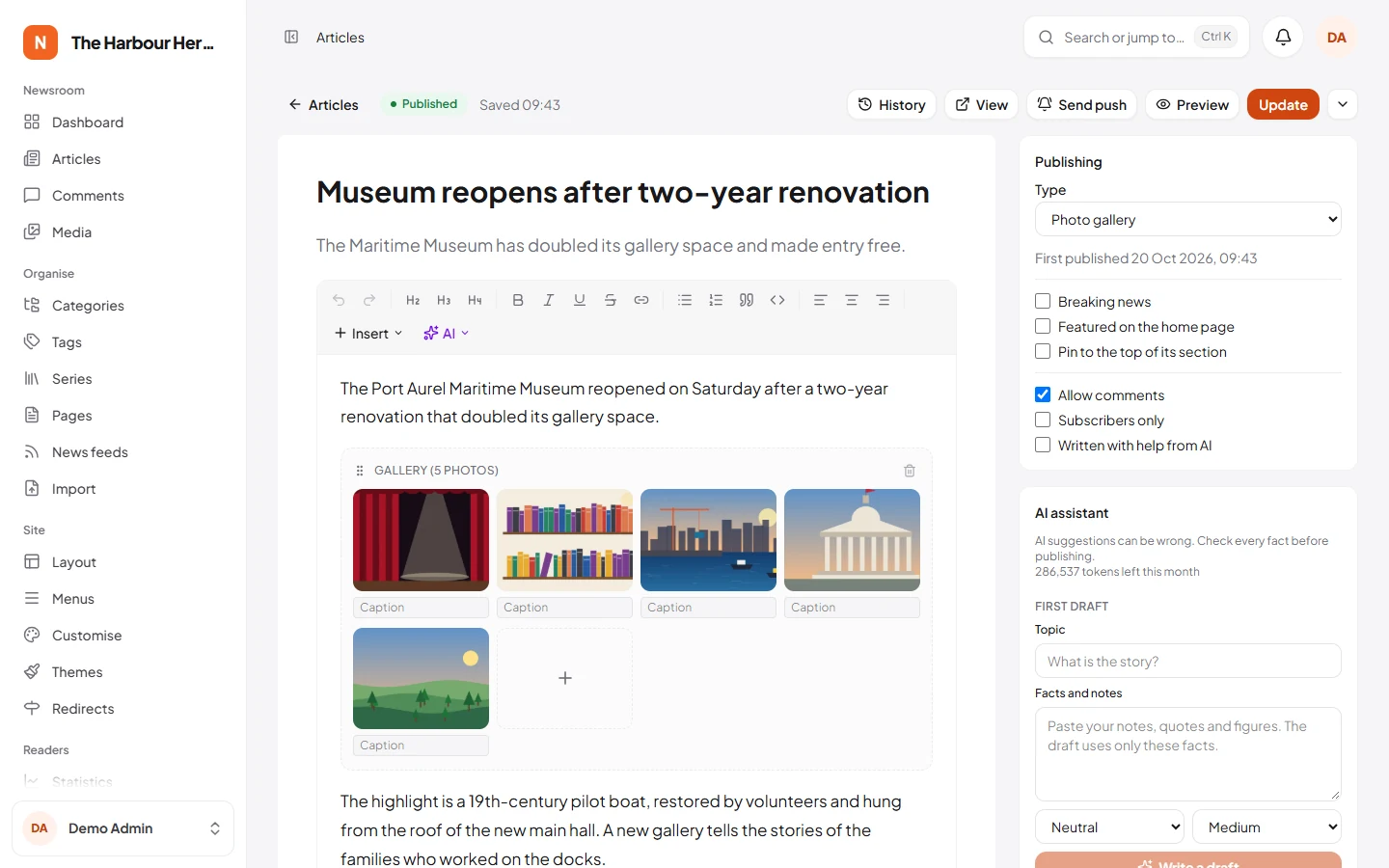
The toolbar has undo and redo, three heading sizes (Heading, Subheading, Small heading), bold, italic, underline, strikethrough, links, bulleted and numbered lists, quotes, code blocks, and left, centre and right alignment.
Insert adds a block:
- Photo from library. Each photo has its own Caption, Alt text and Credit. Caption and alt text fall back to the ones in the media library when empty. Size is Small, Normal, Wide or Full width.
- Photo gallery. Add photos with the plus button, give each a caption, and move them left or right.
- Video, audio or social post. Paste a link and add a caption if you like. YouTube, Vimeo, Spotify and SoundCloud play inside the article. Posts from X, Instagram, Facebook and TikTok show as a link to the post, which a theme can turn into the full post. Any other address becomes a plain link.
- Callout box. A coloured box with an optional heading, in the style Info, Note, Warning or Good news.
- Pull quote. A quote set large, with Who said it.
- Related article. Search for another article in the same language. Readers see a link card only while that article is published, so a story that is unpublished later never leaves a broken link.
- Table. Starts with three rows and three columns. While the cursor is in it, + Row, + Column, − Row, − Column and Delete table appear in the toolbar.
- Divider. A line between parts of the story.
- Ad or promo slot. Places an In-article ad, a Second in-article ad or a Newsletter sign-up exactly there. See Ads and memberships.
Each block has a bar with its name, a handle to drag it to another place, and a button to remove it.
Article settings
The panels on the right hold everything else.
Publishing
- Type and, for people who can publish, Publish at. Times are in your site's timezone, set under System → Site settings → General.
- Breaking news, Featured on the home page and Pin to the top of its section. Only people who can publish see these. Breaking news can show in the theme's breaking news ticker for two days after publishing, and can send a push alert by itself (see Push notifications).
- Allow comments, Subscribers only (see the paywall) and Written with help from AI.
Featured image. Click Choose a photo, then Replace or Remove. You get a warning when the photo has no alt text.
Categories and tags
- Tick one or more sections. Click the star next to a ticked section to make it the main category. Without a star, the first one you ticked becomes the main one.
- Type a tag and press Enter or a comma. Existing tags in the article's language are suggested, and new ones are created for you.
Byline
- Author. Only editors can choose someone else. Everyone else sees "By" and the author's name.
- Also by adds co-authors. Hold Ctrl (or Cmd on a Mac) to choose several.
- Part of a series and the part number. It appears once you have a series in the article's language under Organise → Series.
- Source, such as "Reuters", with an optional link to the original.
- Sponsored by. Leave it empty unless someone paid for the story. Readers see "Sponsored by …" on the article and "Sponsored" on cards.
- Video link, for video articles only.
Search engines
- A preview of how the article may look in search results.
- Address, made from the headline. If you change the address of a published article, NewsLoop sends readers from the old address to the new one, but it is still best to leave it alone.
- SEO title and SEO description, with a character count. Left empty, they use the default.
- Under Advanced: Canonical address, only if the story first appeared elsewhere, and Hide from search engines.
Saving
- Drafts and articles in review save themselves about four seconds after you stop typing. The top bar shows Saving…, Saved with the time, or Not saved if something went wrong. Save draft and Ctrl+S save at once.
- Published and scheduled articles do not change while you type. Your edits are kept as a private backup, and the top bar says "Changes backed up. Press Update to publish them." Readers see nothing new until you press Update.
- If you leave a live article with backed-up changes, the editor offers them next time: click Restore my changes, check them, and press Update. Dismiss ignores them.
- Preview opens the article as readers will see it. A draft is saved first. A published article previews its saved version, without your unpublished edits.
- View opens the live article, and Send push starts a push alert for it, for people allowed to send them.
- The admin warns you before you leave the page with unsaved changes.
Editing at the same time
Only one person can edit an article at a time. When you open an article someone else is editing, you see "… is editing this article", and the editor is read-only.
- You can read it, or click Take over. Their unsaved changes are lost, and their editor becomes read-only within half a minute.
- The editor holds the article while it is open, and lets go when you leave it. If an editor closes without letting go, for example when the connection drops, the article is free again after two minutes.
Revisions
Click History at the top of the editor to see earlier versions. Each one shows when it was made, by whom, its word count and why it was kept: Saved, Autosave, Published or Restored.
- Pick a version on the left. It is compared, word by word, with the text in the editor now. Green was added since, red was removed. If the headline differed, it is shown too.
- Click Restore this version to bring back its headline, standfirst, summary and story.
Your current text is kept in the history first, so a restore can be undone. On a published article a restore goes live straight away. NewsLoop keeps the 50 latest versions of each article, and keeps only your newest autosave between two saves.
Review and publishing
An article is always in one of these states:
- Draft: private, still being written.
- In review: submitted and waiting for an editor.
- Scheduled: will be published at the time chosen.
- Published: live on the site.
- Archived: taken off the site but kept.
If you can publish, the main button changes with the article: Publish, Schedule when Publish at is in the future, Update schedule, Update for a published article, and Republish for an archived one. A Publish at time in the past publishes the article with that older date, which helps when you bring in old stories. Republishing an archived article keeps its original date.
The arrow next to the main button holds the other moves: Publish now and Unschedule for a scheduled article, Unpublish to turn a live article back into a draft, and Archive for a published one.
Scheduled articles are published by the cron job, within a minute of their time. Without the cron job they stay scheduled. See Installing.
If you cannot publish, the main button is Submit for review. While the article waits, it says Waiting for review, and the arrow offers Withdraw from review. You can keep editing until an editor publishes it.
Reviewing. Editors find submitted articles in the In review tab, and under Waiting for review on the dashboard. Publish or schedule the article, or choose Send back to the writer from the arrow. Type what should change. The article returns to draft and the writer sees your note.
Who can do what
| Role | Writes | Publishes | Edits others' articles | Posts live blog updates |
|---|---|---|---|---|
| Contributor | Own articles | No, submits for review | No | No |
| Reporter | Own articles | No, submits for review | No | Yes |
| Author | Own articles | Own articles | No | No |
| Editor, Admin, Super Admin | Any | Any | Yes | Yes |
- Once an article is scheduled or published, contributors and reporters can no longer change it. They see "This article is live. Ask an editor to make changes."
- Writers can move their own drafts to the trash and restore them. Only editors and admins can delete for good.
- You can change any role's permissions under System → Roles, for example giving authors Post live blog updates.
Notifications and desk notes
The bell at the top of the admin shows newsroom notifications, and each one is also sent by email:
- when an article is submitted for review, to everyone who can publish other people's work;
- when an article is sent back, to its author, with the note;
- when someone else publishes or schedules your article.
Notifications are sent in the background by the cron job (or a queue worker).
Notes for the desk is a panel for messages between writers and editors about one article. Readers never see them. Type a note and click Add note. You can delete your own notes. A note written while sending an article back is kept here too.
Translations
When your site has more than one language, the Translations panel shows the article's language and its versions in other languages, with their status.
- Click Translate to and the language.
- A new draft opens in that language, linked to the original. The headline, standfirst, summary, story, featured image, sections, video link and source are copied in, ready to translate. Tags are not copied, because each language has its own tags.
- Translate the text, add tags, and publish it like any other article.
Each article can have one version in each language. Once both are published, the language switcher on the site takes readers from one version to the other, and search engines learn that they belong together. See Languages and translations.
Live blogs
A live blog is an article with timed updates below its text. Use the main story box for the introduction, and post updates in the Live updates box under it.
- Optionally write a short headline for the update.
- Write the update. It uses the same editor, so it can hold photos, embeds and the other blocks.
- Tick Key event for moments readers should be able to jump to, or Pin to top to keep the update above the others.
- Click Post update.
Edit or delete an update with the icons beside it. Reporters change their own updates, and editors can change anyone's. Reporters can keep posting after the live blog is published, even though they cannot change the article itself.
What readers see:
- A Live badge on the article, and the updates newest first, with pinned ones on top.
- A Key events list linking to the latest key events.
- New updates appear by themselves, about every 20 seconds while the page is open. If the reader has scrolled down, a New updates button appears instead, so the page does not jump. Deleted updates disappear. Changes to an existing update show when the page is reloaded.
- Updates appear only once the live blog itself is published.
AI tools
When AI is turned on and your role allows it, the editor gains an AI menu in the toolbar for selected text, an AI assistant panel on the right, and Make a picture with AI under the featured image. Nothing the AI writes is saved until you use it. Setting up the AI and using each tool are described in AI tools.