 NewsLoop
Site settings
This page covers the site-wide settings under System → Site settings, and the languages your site publishes in, under System → Languages. The settings are in six tabs down the left. Each tab saves on its own when you click Save.
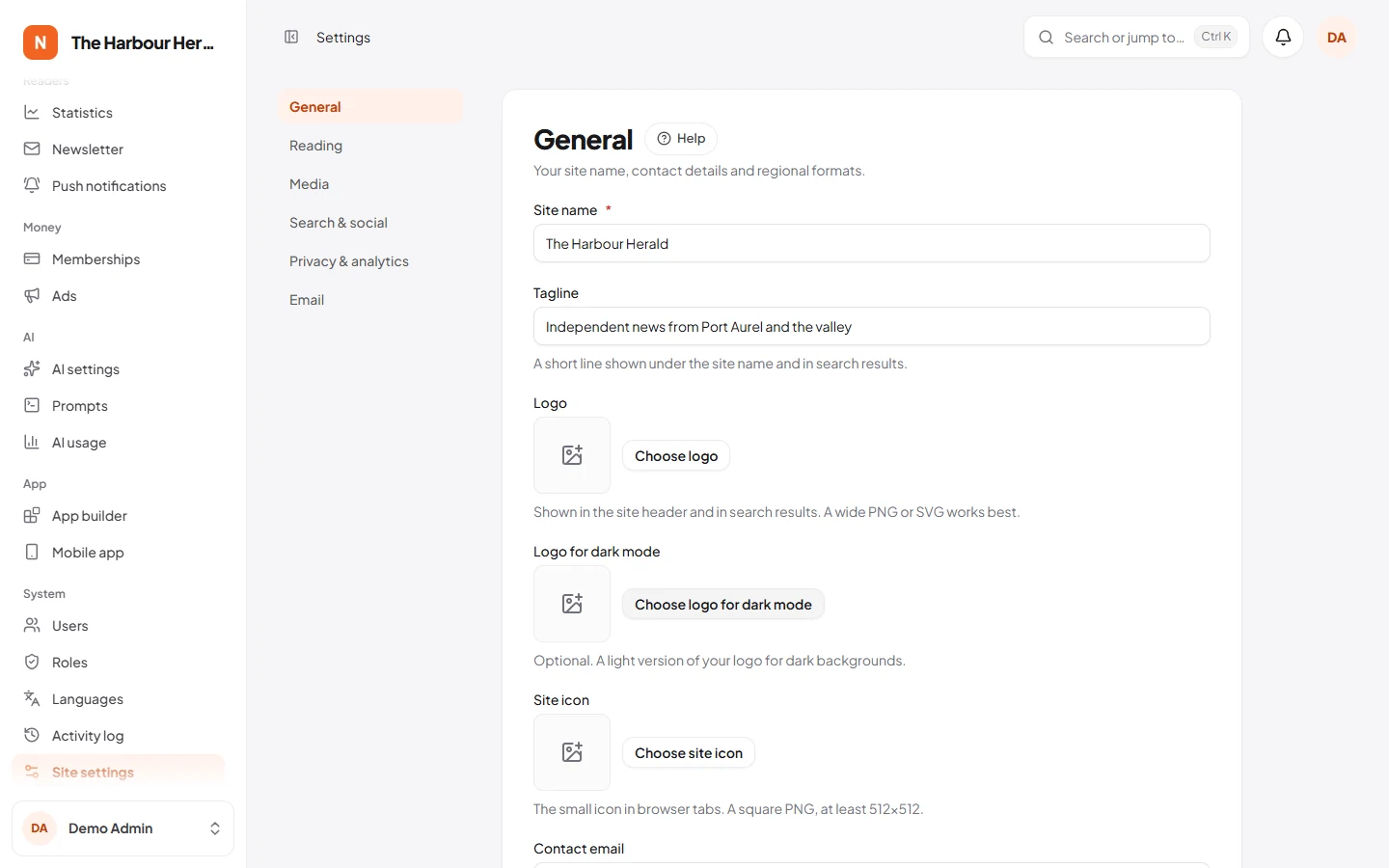
General
- Site name: required, up to 100 characters.
- Tagline: a short line shown under the site name and in search results.
- Logo: shown in the site header and in search results. A wide PNG or SVG works best.
- Logo for dark mode: optional. A light version of your logo for dark backgrounds.
- Site icon: the small icon in browser tabs. A square PNG, at least 512×512.
- Contact email: shown on the contact page and used for admin notifications. Messages from the contact form go here too. While it is empty, the contact form tells readers it is not set up yet.
- Timezone: dates are shown to readers in this timezone. Scheduled articles use it too.
- Date format and Time format: each choice shows an example, such as "23 Sep 2026" or "15:45".
Reading
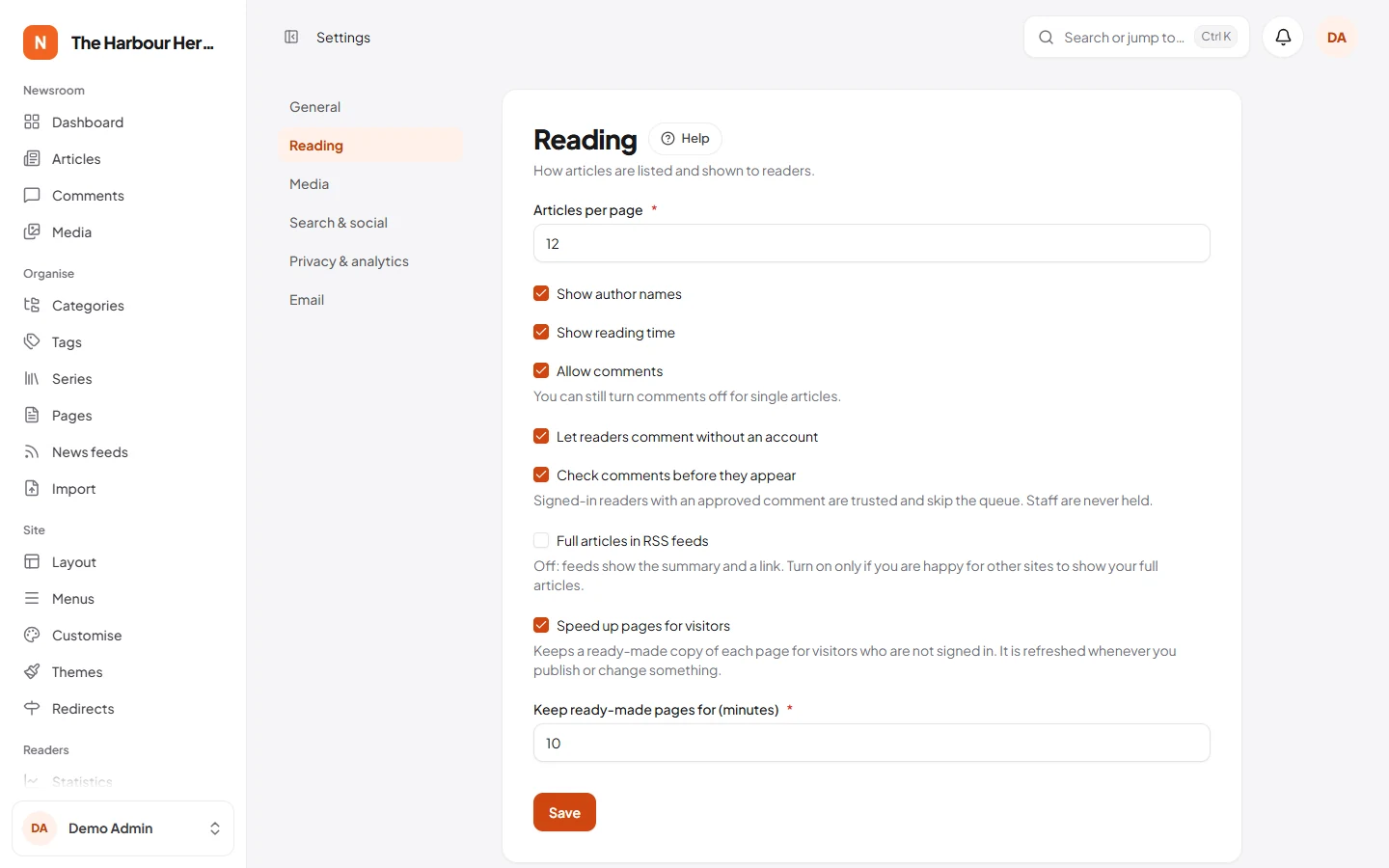
- Articles per page: on pages that list articles, such as sections and tags (1 to 100).
- Show author names and Show reading time on articles.
- Allow comments: you can still turn comments off for single articles.
- Let readers comment without an account.
- Check comments before they appear: signed-in readers with an approved comment are trusted and skip the queue. Staff are never held. See Comments.
- Full articles in RSS feeds: off by default, so feeds show the summary and a link. Turn it on only if you are happy for other sites to show your full articles.
- Speed up pages for visitors: keeps a ready-made copy of each page for visitors who are not signed in. It is refreshed whenever you publish or change something. Keep it on.
- Keep ready-made pages for (minutes): 10 by default.
Media
- Largest upload (MB): 20 by default. Your server can also limit uploads; the media library shows the limit that applies.
- Remove location and camera data from photos: on by default. Phones store GPS location in photos, so keep this on to protect reporters and sources.
See Media library for uploading and picture sizes.
Search and social
The tab is called Search & social. How these settings show up in search results is explained in Search engines and sharing.
- Title separator: what goes between the page title and your site name, as in "Politics – Site name".
- Home page title and Home page description: what search engines show for your home page. The title defaults to your site name and tagline. Keep the description to about 150 characters.
- Default share image: used when an article or page has no image of its own. 1200×630 works best.
- Publisher name: your organisation's name for Google News and search results. Defaults to the site name.
- Google News sitemap: lists articles from the last two days at
/sitemaps/news.xml. - Ask search engines not to index this site: for staging or private sites. Search engines may still show pages that are linked from elsewhere.
- Extra robots.txt rules: added to the automatic rules, one per line, for example
Disallow: /private. - Google Search Console code and Bing Webmaster code: only the code from the verification tag, not the whole tag.
- X (Twitter) username (without the @), and the addresses of your Facebook page, Instagram profile, YouTube channel, LinkedIn page and TikTok profile.
Privacy and analytics
The tab is called Privacy & analytics. What these mean for your readers is explained in Privacy.
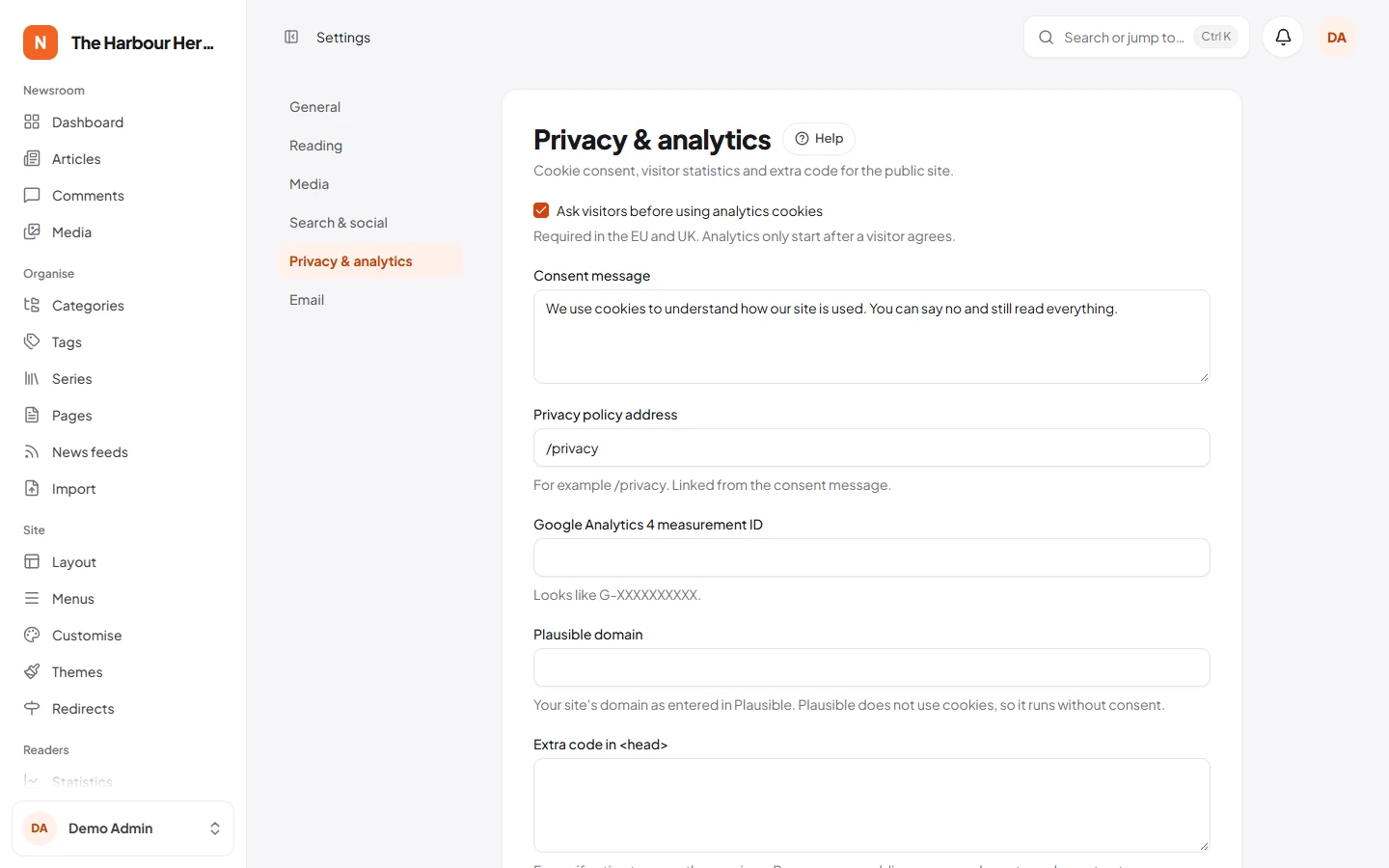
- Ask visitors before using analytics cookies: on by default, and required in the EU and UK. Google Analytics and ads from other companies wait until a visitor agrees.
- Consent message: the text of the cookie banner.
- Privacy policy address: such as
/privacy. The cookie banner and the app link to it. - Google Analytics 4 measurement ID: looks like
G-XXXXXXXXXX. - Plausible domain: your site's domain as entered in Plausible. Plausible sets no cookies, so it runs without consent.
- Extra code in <head> and Extra code before </body>: for verification tags or other services. This code runs on every public page, so only paste code you trust. Changing it needs the Add custom code (HTML and scripts) to the site permission (see Users and roles).
Email
The site sends email for password resets, contact form messages, receipts and the newsletter.
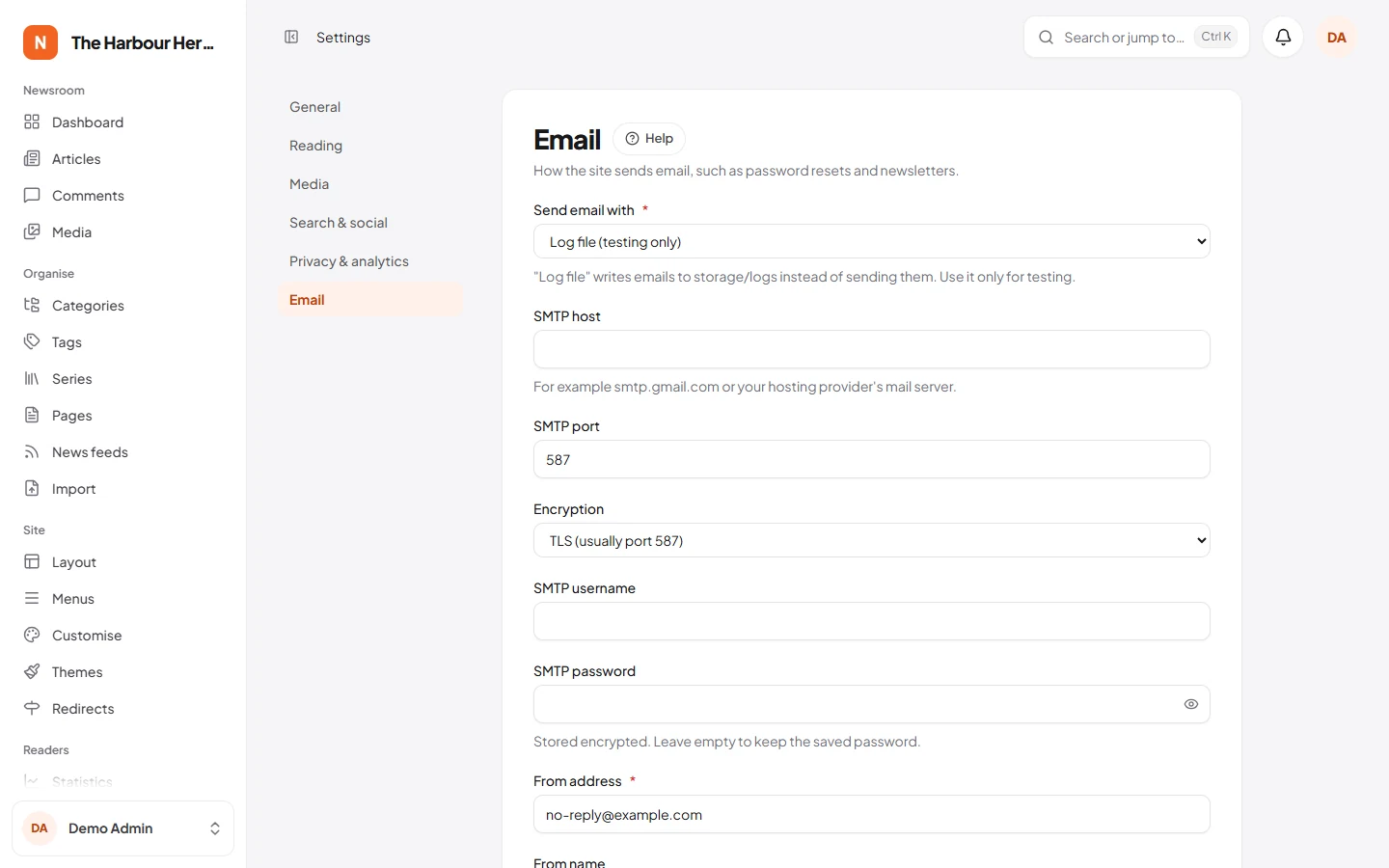
- Send email with:
- SMTP server: the usual choice. Use your mail provider, or a sending service such as Mailgun, Amazon SES, Brevo or Postmark.
- Sendmail (server default): your server's own mail program.
- Log file (testing only): emails are written to
storage/logsand never sent. A new site starts with this, so change it before you go live.
- SMTP host: for example
smtp.gmail.comor your hosting provider's mail server. - SMTP port (587 by default) and Encryption: TLS usually goes with port 587, SSL with port 465.
- SMTP username and SMTP password: the password is stored encrypted and never shown again. Leave the box empty to keep the saved one, or tick Remove the saved value to delete it.
- From address: required. Use an address at your own domain.
- From name: defaults to the site name when empty.
Test email
- Save the Email tab.
- Click Send test email. It uses the saved settings, so the button waits until you have saved your changes.
The test goes to your own account's address. If sending fails, the message says why, for example a wrong password or a blocked port.
Settings on other screens
Some settings have their own screens:
- the theme and its colours: Site → Themes and Site → Customise (Themes);
- ads and memberships: Money → Ads and Money → Memberships (Ads and memberships);
- the newsletter and push notifications: Readers → Newsletter and Readers → Push notifications (Newsletter, push notifications and statistics);
- AI: AI → AI settings (AI);
- the app: App → App builder and App → Mobile app (Mobile app);
- updates and backups: System (Installing).
Languages
System → Languages lists the languages your site publishes in. A new site has English only. Articles can be written or translated into each active language.
Adding a language
- Click Add language.
- Under Language, choose one from the list. This fills in the code, the names and the direction for you. For a language not in the list, type its Code yourself, such as
frorpt-BR. - Check Text direction: Left to right, or Right to left for Arabic, Hebrew, Persian or Urdu.
- Check Name in English and Name in the language itself. The second one is shown in the language switcher readers see.
- Leave Active (visible to readers) ticked, or untick it to prepare the language before readers see it.
- Click Add language.
Each language other than the default has its own addresses, such as /fr/ for French. The default language has no code in its addresses.
The words around your articles, such as buttons and dates, come with NewsLoop for six languages. For any other language, or to change a word, see Languages and translations.
The default language
The default language is marked Default. To change it, edit another language, tick Default language and click Save. There is always exactly one default, and it must stay active.
Choose the default before you publish much: it decides which articles have no language code in their address. Changing it later changes the addresses of articles in both the old and the new default language.
Hiding or deleting a language
- To take a language off the site for a while, edit it and untick Active (visible to readers). It is then marked Hidden.
- You can delete a language with the bin, except the default. A language that still has articles, categories, tags or series cannot be deleted: hide it instead, or delete that content first.
Who can change settings
Site settings needs the Manage site settings permission, and Languages needs Manage languages. Admins and Super Admins have both by default. Every save of the site settings is written to the activity log (see Users and roles).