 NewsLoop
Importing content
NewsLoop can bring content in three ways: news feeds checked on a schedule, a WordPress site, and a spreadsheet. Everything imported is edited like any other article, and running the same import again only adds what is new.
News feeds
Go to Organise → News feeds and click Add feed.
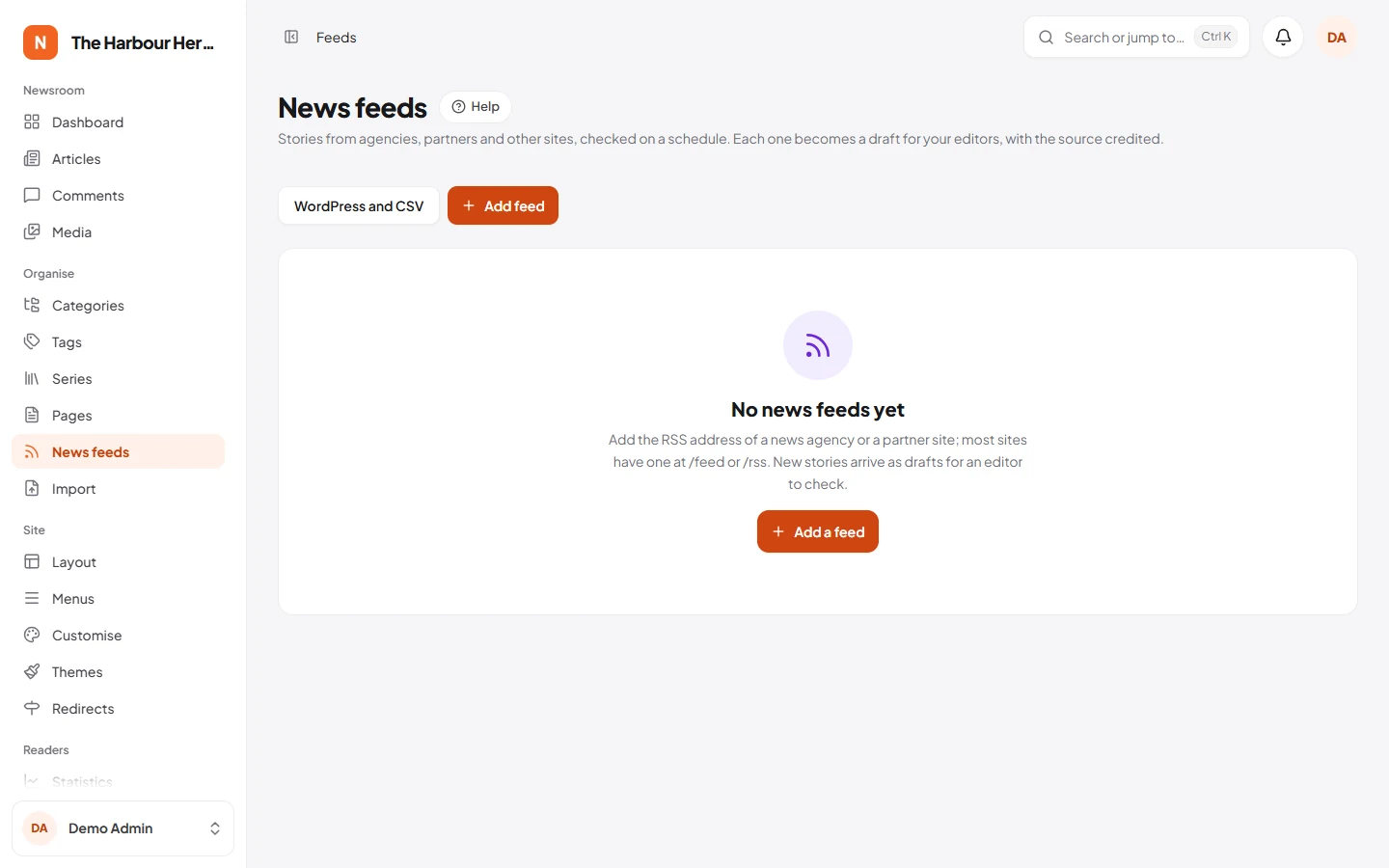
- Paste the feed address and click Check. NewsLoop reads the feed and shows its latest stories. Most sites have a feed at
/feedor/rss. RSS, Atom and JSON Feed all work. - Choose the language, the section imported stories go to, and who the drafts belong to.
- Choose what new stories become: drafts or articles waiting for review. NewsLoop never publishes imported stories by itself; an editor always checks them first.
- Choose how often to check the feed and how many stories to take each time.
Options:
- Import new stories by themselves. Otherwise you open the feed and click Import on the stories you want.
- Rewrite stories with AI. Needs an AI provider (see AI tools). The AI writes an original draft in your own words from the story. The source stays credited, and the article is marked as written with AI help.
- Copy pictures into the media library. Pictures are downloaded, checked and stored like uploads.
- Use the feed's categories as tags.
Every imported article credits the feed as its source, with a link to the original. Only import stories you have the right to use, for example from a news agency you subscribe to or a partner who agreed.
If a feed stops working, it shows the reason on its card and NewsLoop checks it less often until it works again.
WordPress
- In WordPress, go to Tools → Export, choose All content and download the file.
- In NewsLoop, go to Organise → Import, choose the file under From WordPress and click Start import.
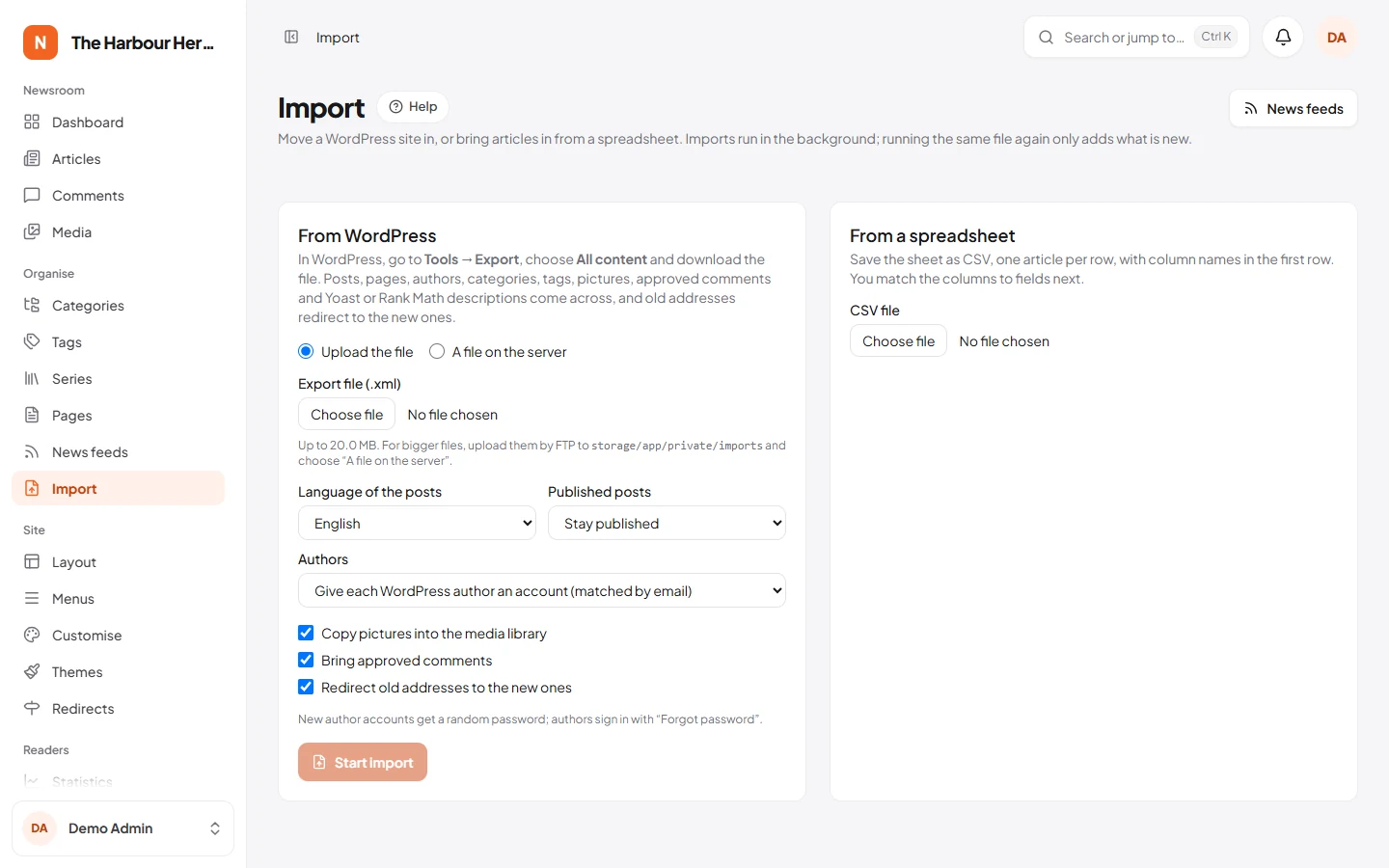
What comes across:
- Posts and pages, keeping their addresses where they are free
- Authors, as Author accounts matched by email. You can also put everything under your own name
- Categories with their hierarchy, and tags
- Featured images, pictures in posts, captions and galleries, copied into the media library at full size
- Approved comments, with replies. Spam and trash stay behind
- Yoast SEO and Rank Math meta descriptions
- Redirects from the old addresses to the new ones, so links and search results keep working
Published posts stay published, unless you choose Come in as drafts. New author accounts get a random password; authors sign in with Forgot password.
The import runs in the background in short steps, so it works on any hosting. The progress bar updates by itself, you can leave the page, and you get a notification when it finishes. If the server restarts, the import carries on where it stopped.
Very large sites
If the export file is bigger than your upload limit (shown under the upload box), upload it by FTP to storage/app/private/imports and choose A file on the server. You can also export from WordPress in parts, for example one year at a time.
Spreadsheets (CSV)
Save your sheet as CSV, one article per row, with column names in the first row. After you choose the file, NewsLoop shows its columns and guesses which one holds what. Check the matches and start. Only the headline is required.
| Field | Notes |
|---|---|
| Headline | Required |
| Text | HTML, or plain text with blank lines between paragraphs |
| Summary, Section, Tags | Tags separated by commas or semicolons. Missing sections can be added for you |
| Author email | Matched to an existing account; otherwise the article is yours |
| Date | 2026-09-01, 31/12/2025 and most other formats |
| Status | published, pending or draft. Rows without one use the status you choose |
| Picture address, Source name, Source address, Search description | Optional |
Spreadsheets saved by Excel in its own encodings are read correctly.
Imports and your server
- Imports use the queue. On shared hosting, set up the cron job from the installation guide; it also runs queued work.
- Addresses inside your own network (localhost, 10.x, 192.168.x, cloud metadata) are refused, so nobody can use a feed to probe your server. To import from a feed on your own intranet, set
NEWSLOOP_FETCH_ALLOW_PRIVATE=truein.env, only on a trusted server.
Troubleshooting
- A WordPress import stays at the same step. It runs in the background, from the cron job (or a queue worker on a VPS). Check that System → Cron job says Running. An import that stopped picks up again by itself within 5 minutes.
- The export file is bigger than the upload limit. Upload it by FTP to
storage/app/private/importsand choose A file on the server (Very large sites). - Pictures are missing after an import. The old site must still be online during the import, because pictures are copied from it. Pictures from addresses inside your own network are refused (see Imports and your server).
- A feed shows an error. Open the feed's address in a browser. If it doesn't show XML, the address is wrong. Some sites block unknown visitors; ask the site for a feed address you may use.