 NewsLoop
Comments
Readers can comment on your articles from the website and the mobile app. This guide covers switching comments on, who may comment, checking new comments, replying as the newsroom and how spam is kept out. You check comments under Newsroom → Comments. The settings are under System → Site settings → Reading.
Switching comments on
Comments are on when you install NewsLoop. Three settings under System → Site settings → Reading decide how they work:
- Allow comments: comments for the whole site. Untick it to close comments everywhere.
- Let readers comment without an account: when ticked, guests can comment with a name and an email address. When unticked, readers must sign in first.
- Check comments before they appear: when ticked, new comments wait for a moderator. See Which comments wait.
Comments on one article
Each article has an Allow comments box in the editor. It is ticked for new articles. Untick it to close comments on that article only, for example on a sensitive story. See Articles.
When comments are closed, the comments already approved stay visible, and readers see "Comments are closed for this article." instead of the form.
What readers see
Under the article, readers see the approved comments, oldest first, and a form titled "Join the conversation":
- Your comment, up to 5,000 characters;
- Name and Email for guests. The email is never shown.
Readers can Reply to a comment. Replies show under it. Signed-in readers comment under their account name and skip the name and email fields.
Comments are plain text. Links and formatting are shown as typed, never as code.
Which comments wait
With Check comments before they appear ticked:
- Guests always wait for a moderator.
- Signed-in readers wait until a moderator has approved one of their comments. After that, they are trusted and their comments appear at once. Trust belongs to the account, not to an email address, so nobody can borrow another reader's trust by typing their email.
- Staff who moderate comments are never held.
With it unticked, every comment that is not spam appears at once.
Readers are told "Thanks, your comment is live." or "Thanks, your comment will appear once a moderator has checked it."
The moderation queue
Open Newsroom → Comments. The tabs sort comments by status, each with its count:
- Waiting: new comments to check. This tab opens first.
- Approved: comments readers can see.
- Spam: comments NewsLoop or a moderator marked as spam.
- Trash: comments put aside, kept until you delete them.
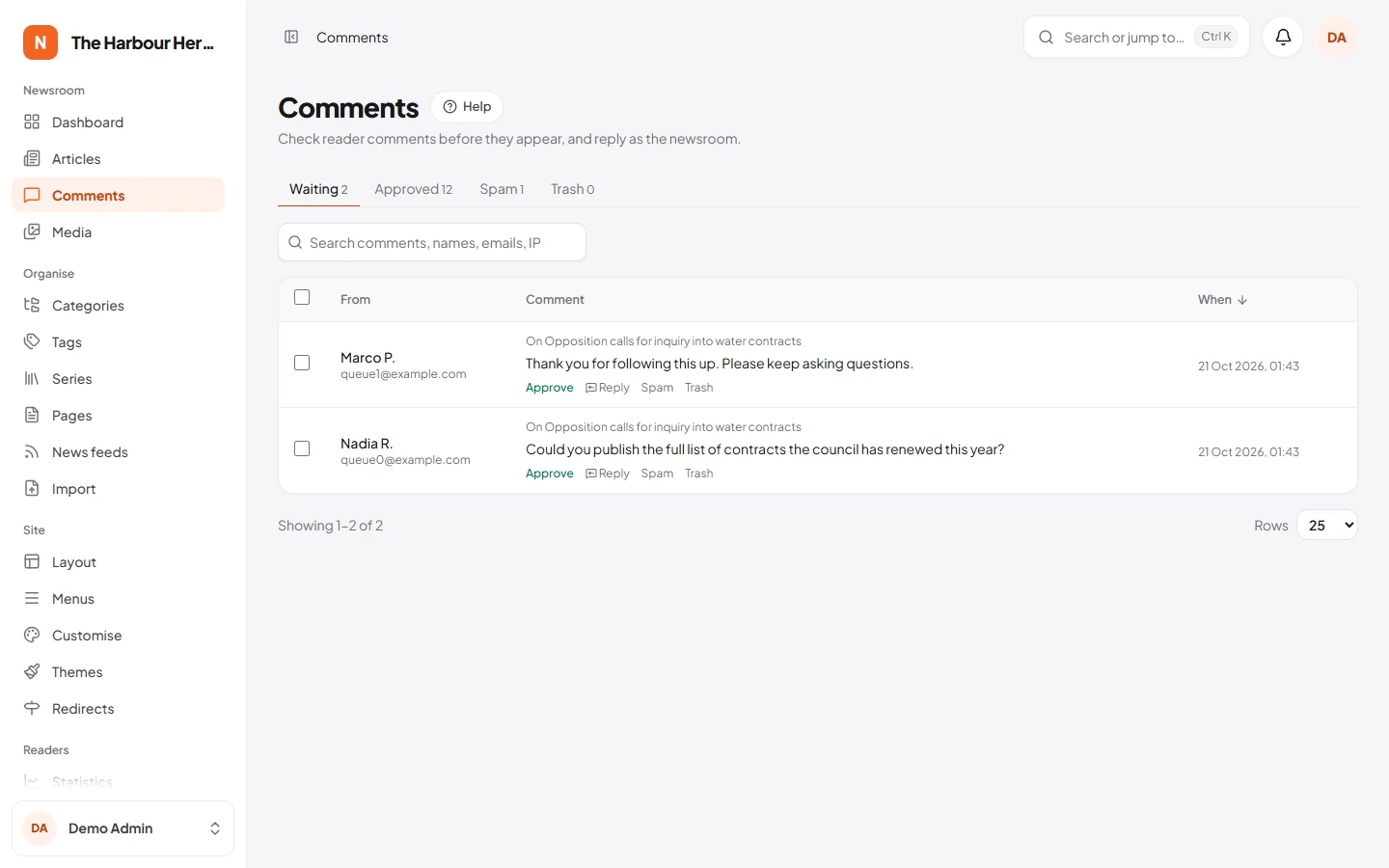
Each comment shows who wrote it, their email and internet address, the article it is on, and whom it replies to. Click the article's title to open it in the editor. Search finds comments by their text, names, emails and internet addresses.
Under each comment:
- Approve shows it on the site. On approved comments, Unapprove moves it back to Waiting.
- Reply answers as the newsroom (see below).
- Spam and Trash move it to those tabs.
- Delete for good, in the Trash tab, removes the comment and its replies. This cannot be undone.
The Comments to check card on the dashboard shows how many comments are waiting and opens this tab.
Many comments at once
- Tick the comments, or tick the box at the top to choose the whole page.
- Click Approve, Spam or Trash. In the Trash tab, click Delete for good instead.
Replying as the newsroom
- Click Reply under a comment.
- Type your answer and click Publish reply.
Your reply appears at once under your own name, marked Staff on the site and in the queue. If the comment you answer was still waiting, it is approved at the same time.
Staff can also comment on the site itself while signed in. Those comments are marked Staff too.
Spam protection
NewsLoop keeps most spam out by itself:
- A hidden field. The form has a field people never see. Bots fill it in, and their comments go straight to Spam.
- Link limit. A comment with more than two web links goes to Spam.
- Rate limits. One internet address can send five comments a minute and 30 an hour. More are refused until the time has passed.
- Bots learn nothing. A comment filed as spam gets the same answer as one waiting for a moderator, so senders cannot tell it was caught.
Look through the Spam tab now and then. If a real comment landed there, click Approve. Spam is kept until you delete it.
Who can moderate
People with the Moderate comments permission see Newsroom → Comments. Editors and Admins have it. You can give it to other roles under System → Roles.
Readers' own data
Comments a signed-in reader wrote are included when they use Download my data on their account page. See Download my data.
Comments also come along when you move from WordPress. See Importing content.