 NewsLoop
Customization guide: your logo, colours, theme and app branding
This is the guide for the first things most owners do: upload your logo, set your brand colours, and switch or adjust your theme. It puts your publication's brand on NewsLoop: your name, logo, icon and colours, on the website and in the app. You don't need to code or edit any file for the website, or for the app's logo and colours: everything is a setting in the admin panel, and your settings stay when you update NewsLoop or switch themes. Only the app's name, icon and splash screen go into the app file itself, when the app is built for the stores (Step 7).
It takes about 15 minutes. Only the last part, For web developers, involves code, and you can skip it.
In this guide:
- Upload your logo and icon
- Set your brand colours
- Header, fonts and footer
- Check your work
- Switch your theme
- Adjust your theme without code
- The app's logo, colour scheme and branding
- For web developers: change a theme's design or templates

What to have ready
| What | What it should be | Where it is used |
|---|---|---|
| Your logo | A PNG or SVG file with a transparent background, wide rather than tall, at least 400 pixels wide. | The website's header and Google's search results |
| A light version of your logo (optional) | The same logo in white or a light colour, for dark mode. | The header in dark mode |
| A square icon | A square PNG, at least 512 × 512 pixels. Often your logo's symbol or first letter. | Browser tabs, bookmarks and phone home screens |
| An app icon (for the app only) | A square PNG, 1024 × 1024 pixels, without transparency. | The app on phones |
| Your brand colour | Its six-digit hex code, such as #C8102E. |
Links, labels, buttons and the news ticker |
Finding your brand colour's hex code. Ask your designer, or look in your brand guidelines. If you only have the logo, open it in any free online "colour picker from image" tool, click the main colour, and copy the code that starts with #.
Step 1: your name, logo and icon
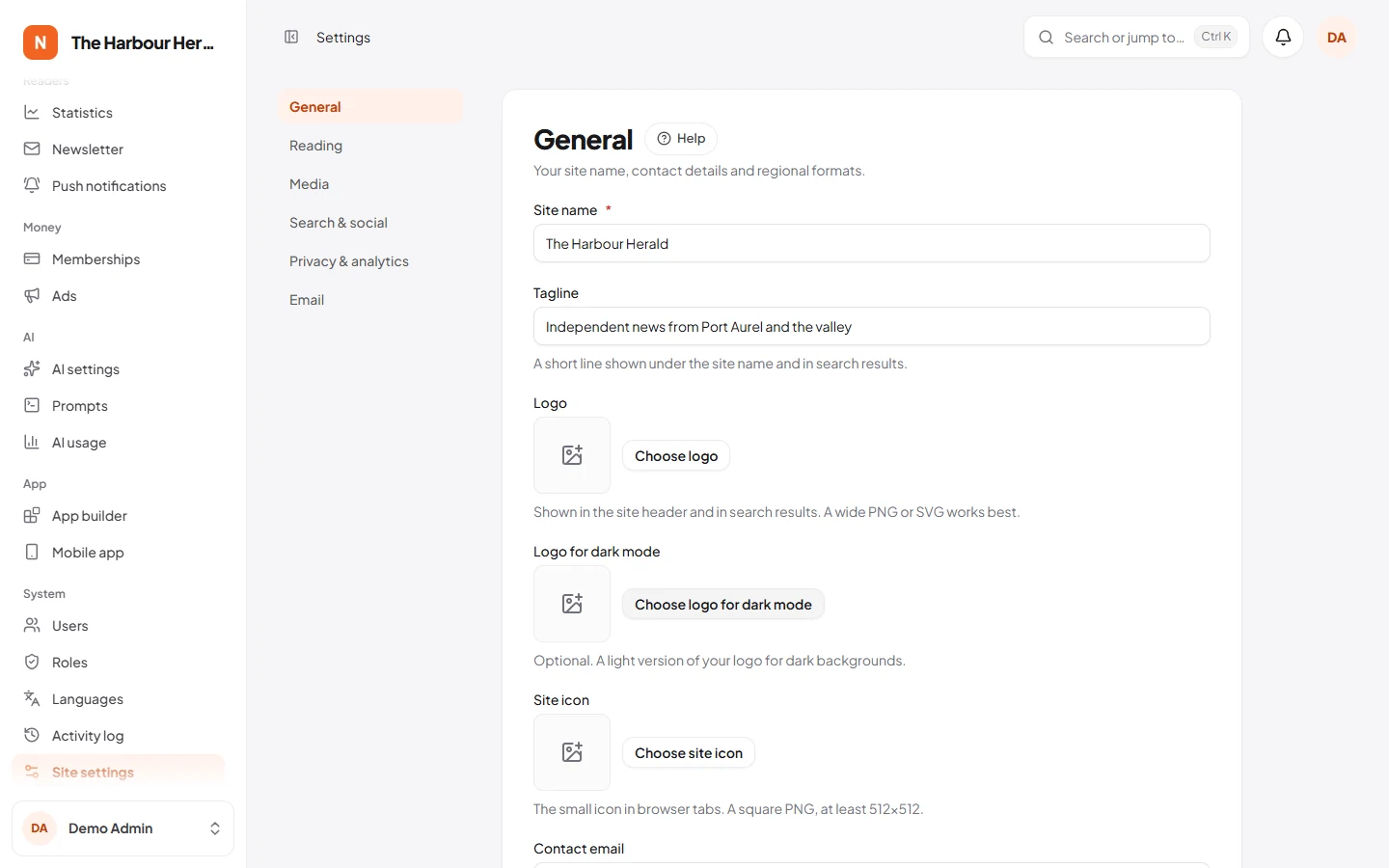
- In the admin, open System → Site settings, then the General tab. (Only Admins can open it.)
- Fill in:
- Site name: your publication's name. Keep it short: names over 14 characters are shown in a smaller size in the header.
- Tagline: one short line about you. It shows under the name, in the footer and in search results.
- Under Logo, upload your logo. Under Logo for dark mode, upload the light version, if you have one. Without it, dark mode shows your normal logo.
- Under Site icon, upload the square icon.
- Click Save.
Your site name is also the sender name and the heading of the emails your site sends, such as newsletters and account emails.
Step 2: your colours
- Open Site → Customise. Your home page shows on the right, and every change appears there straight away.
- Under Colours:
- Accent colour: paste your brand colour's hex code into the box next to the colour square, or click the square to pick a colour. It is used for links, labels, the news ticker and buttons.
- Accent colour in dark mode: a lighter shade of the same colour, so it reads well on dark backgrounds. If your brand colour is dark, try the same colour about a third lighter.
- Light or dark: how your site opens. Readers can still switch with the sun and moon button.
- Click Save changes. Nothing goes live before that.
Tip: the accent colour is used for text on white, so very light colours (such as yellow or pale blue) are hard to read. If your brand colour is light, use a darker shade of it here.
Each section can have its own colour, such as red for News and green for Sport. Set it under Organise → Categories, on each section. Section blocks and labels use it. A section without one uses your accent colour.
Step 3: header, fonts and footer
Still in Site → Customise:
- Header: the header's background (light, dark or your accent colour), today's date in the top bar, the breaking-news ticker, and a navigation bar that stays on screen while scrolling.
- Typography: four font pairings, and the size of article text. The fonts are part of NewsLoop and load from your own server, so they need no cookie banner.
- Footer: the footer text, the "About the site" words under the logo, and a phone number.
Click Save changes when you're done. Theme defaults puts every setting on this screen back as it was.
Each theme keeps its own Customise settings. If you try another theme and come back, your choices are still there.
Step 4: check your work
- Open your website in a private browser window, so you see what visitors see.
- Look at the header, a section page and an article.
- Click the sun and moon button to check dark mode: your light logo and your dark-mode accent colour should show.
- Open the site on your phone.
- If the browser tab still shows the old icon, it is your browser's memory: it shows the new icon within a day, or after you clear its cache.
Step 5: switch your theme
NewsLoop comes with three themes: Classic (a busy news portal), Magazine (a big hero story and large pictures) and Minimal (one column, words first).
- Open Site → Themes.
- Click Preview and customise under a theme to see your own site in it. Visitors keep seeing your current theme while you look.
- Click Use this theme to switch.
Your articles, logo, menus and home page stay as they are. Each theme keeps its own colour and font choices from Step 2 and Step 3, so set them once for the new theme. You can switch back at any time. See Choosing a theme.

Step 6: adjust your theme without code
Most changes to a theme need no code:
-
Colours, header, fonts and footer: Site → Customise, as in Steps 2 and 3.
-
Site → Layout arranges the home page, the sidebars and the footer from blocks: top stories, section blocks, most read, videos, ads, newsletter sign-up and more. See Arranging the home page and sidebars.

-
Site → Menus builds the header, top bar and footer menus by drag and drop. See Menus.
-
Social links and contact details: your social profiles, for the "Follow us" block and the footer, are under System → Site settings → Search & social. Messages from the contact form go to the Contact email under System → Site settings → General. See Social links and The contact form.
Step 7: the app's logo, colour scheme and branding
The NewsLoop app for Android and iPhone is white-label: readers see your publication's name, icon, logo and colours, never NewsLoop's. This step is the app's own customization guide. Most of it needs no code and no new app release.
What you can change, and where:
| What | Where you change it | When readers see it |
|---|---|---|
| Logo in the app's top bar, and its dark-mode version | The same logo files as the website, under System → Site settings → General (Step 1). | The next time they open the app. No new release. |
| Colour scheme: main colour, second colour, highlights, background, cards and text, for light and dark mode | App → App builder → Theme | The next time they open the app. No new release. |
| Fonts, rounded corners and spacing | App → App builder → Theme | The next time they open the app. No new release. |
| App icon on the phone's home screen | App → Mobile app | After you build the app and release it in the stores |
| Splash screen: its logo and colour | App → Mobile app | After you build the app and release it in the stores |
| App name under the icon | app_name in whitelabel.yaml |
After you build the app and release it in the stores |
Change the app's logo and colour scheme (no new release)
- Upload your logo, and the light version for dark mode, as in Step 1. The app uses the same files as the website.
- Open App → App builder and click Theme.
- Under App bar, set Logo to Your logo. The other choices show your site's name in text, or in two colours.
- Under Light colours, set the Main colour to your brand colour's hex code, such as
#C8102E. Then set the Second colour, Highlights, Background, Cards, Text and Quiet text. - Under Dark colours, do the same for dark mode. A dark brand colour can be hard to read on a dark background: a lighter shade of it often works better here.
- Choose the fonts, the rounded corners and the spacing if you like.
- Check the phone preview in the middle. The toolbar switches it between Android and iPhone, and between light and dark.
- Click Publish. Installed apps use your new look the next time they open.

To undo a publish, open Versions in the toolbar and publish an earlier version. See App builder.
Change the app's icon, splash screen and name (with a new release)
These are part of the app file itself, so a change only reaches readers in a new app release.
- On App → Mobile app, upload the app icon: a square PNG, 1024 × 1024 pixels, without transparency. Choose the splash screen logo (a PNG at least 512 pixels wide) and the splash colour.
- In the app's folder (
Main_File/newsloop-app), openwhitelabel.yamland set yourapp_name(up to 30 characters), yourapi_urland your store IDs. Leaveicon,splash_colorandsplash_imageempty to use the ones from step 1. - Run the white-label script (
dart run tool/whitelabel.dart), then build the app and send it to the stores. The script puts your name, icon and splash screen into the Android and iPhone app.
Step 3 needs a computer with Flutter, or a cloud build service. If someone else builds and publishes your app, give them your whitelabel.yaml. The mobile app: Brand it has every setting, and Build without a Mac has the cloud options.
Check the app's branding
- After publishing the theme, close the app completely and open it again.
- Switch your phone between light and dark mode, and check both.
- After a new release, check the icon on the home screen and the splash screen when the app starts.
Questions
- Will an update undo my branding? No. Your logo, colours and other settings are stored in your database, and updates never change them. Only changes made inside the built-in themes' files are replaced (see below).
- Can I go back? Yes. Theme defaults on the Customise screen resets the colours, header, fonts and footer. Logos can be removed or replaced in System → Site settings → General at any time.
- Something I want isn't on the Customise screen. Other fonts, spacing or a different article layout need a small change by a web developer: a child theme, described next. It is the only safe way to modify a theme's design, because updates replace the built-in themes' files.
For web developers
Changing a theme's design
For changes the Customise screen doesn't offer, such as other fonts, spacing or a different article layout, make a child theme. It holds only your changes and gets everything else from Classic. Updates then never overwrite your work, while you still get Classic's fixes.
-
Create the folder
themes/my-paper. -
Add
themes/my-paper/theme.json:json{ "name": "My Paper", "version": "1.0.0", "author": "Your name", "description": "Our newspaper's look.", "parent": "classic", "styles": ["assets/my-paper.css"] } -
Add
themes/my-paper/assets/my-paper.csswith your changes. Classic's stylesheet loads first, so you only write the differences. For example:css/* Headlines in your own font, whichever font pairing is chosen in Customise. */ @font-face { font-family: "Merriweather"; src: url("merriweather-bold.woff2") format("woff2"); font-weight: 700; } :root[data-nf-font-pairing] { --nf-font-heading: "Merriweather", Georgia, serif; } /* A thick line in your accent colour under the header. */ .nf-header { border-bottom: 4px solid var(--nf-accent); }Put font files next to the stylesheet in
assets/, so they load from your own server. Settings that Customise offers, such as the accent colour, are better changed there. -
Choose My Paper under Site → Themes.
To change a template, copy it from themes/classic/views to the same place under themes/my-paper/views, then edit the copy. For example, copy views/article.blade.php to change how articles look. Everything you don't copy still comes from Classic.
Themes are plain Blade templates and CSS: edit a file and upload it, with no build step. Then click Refresh theme files on the Themes screen, so the site copies the new CSS and pictures to where browsers get them. Themes for developers is the full reference: the folder layout, theme.json, layout areas, Customise settings of your own, and what each template receives.
Don't edit the built-in themes
Changes inside themes/classic, themes/magazine or themes/minimal are replaced by the next update. Always use a child theme.