 NewsLoop
Newsletter, push notifications and statistics
Newsletter
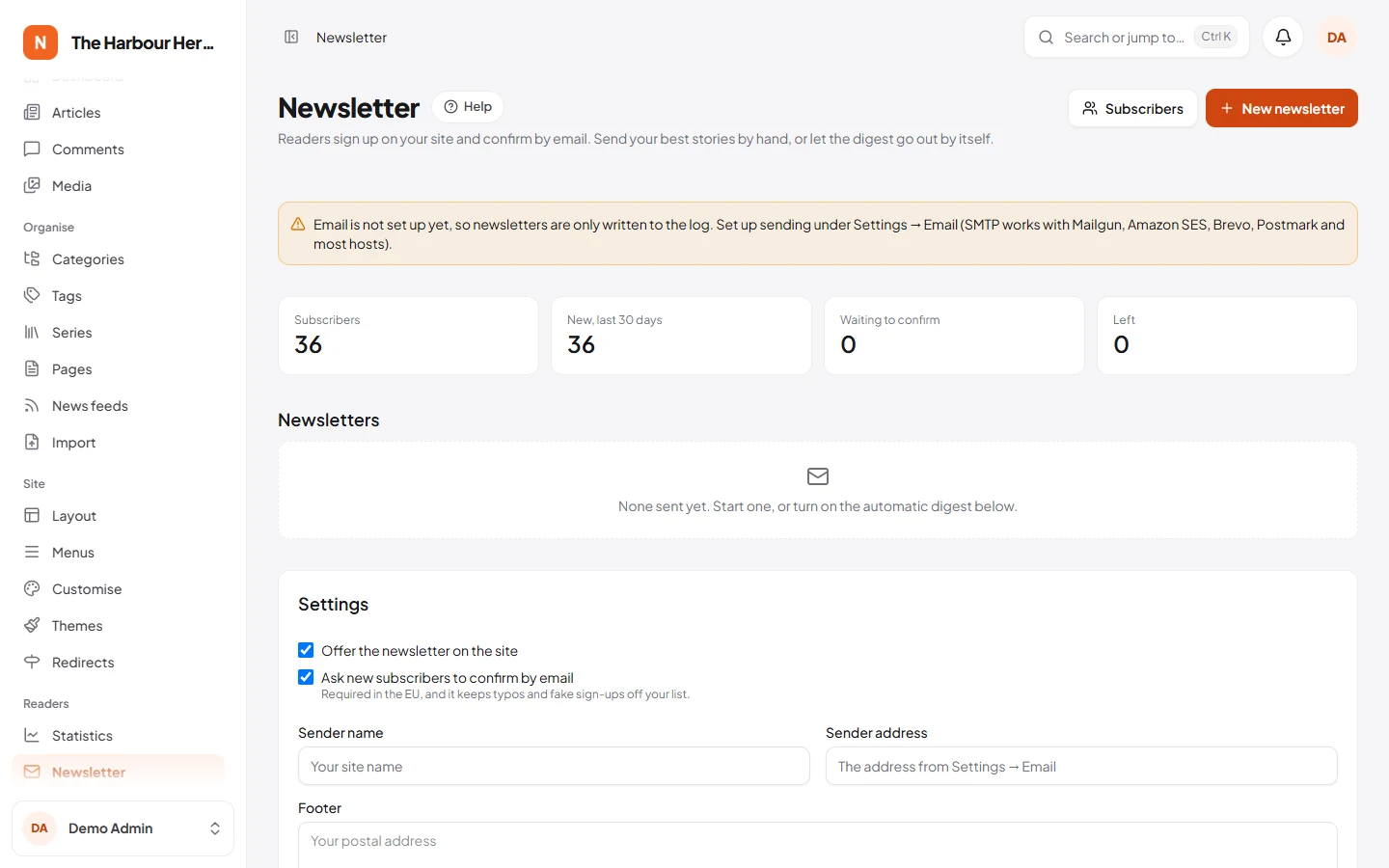
Go to Readers → Newsletter.
Before you start
Newsletters go through your site's email settings (System → Site settings → Email). For more than a few hundred subscribers, use a sending service with SMTP, such as Mailgun, Amazon SES, Brevo or Postmark, rather than your host's mail server. While email is not set up, the Newsletter screen says so and emails are only written to the log.
Add your postal address under Footer: many countries require it. The unsubscribe link is added for you.
How readers sign up
- A sign-up form appears under every article. You can add more with the Newsletter sign-up block in Site → Layout, for example in the footer.
- Readers confirm their address by email first (double opt-in). You can turn this off, but it is required in the EU and keeps typos and fake sign-ups off your list.
- Signed-in readers can switch the newsletter on and off on their account page.
Sending
- New newsletter starts a draft with the latest articles. Change the subject, write a short introduction, and add, remove or reorder articles. The preview shows the email as subscribers will see it.
- Send me a test emails it to you. Send now sends it to all confirmed subscribers, and Schedule sends it later.
- Emails go out in the background in batches. Nobody gets the same newsletter twice, even if a batch runs again.
- Every email has a one-click unsubscribe link, as Gmail and Yahoo require.
The automatic digest
Under Automatic digest, choose every day or every week, the day and the time. NewsLoop sends the most read articles of the period, topped up with the latest ones.
Subscribers
Subscribers lists everyone, with a CSV download for moving to another service. Add subscribers takes a pasted list, only of people who agreed to get your newsletter. Removing someone deletes their address for good.
Mailchimp is optional: add your API key and audience ID, and every sign-up and departure is copied there.
Push notifications
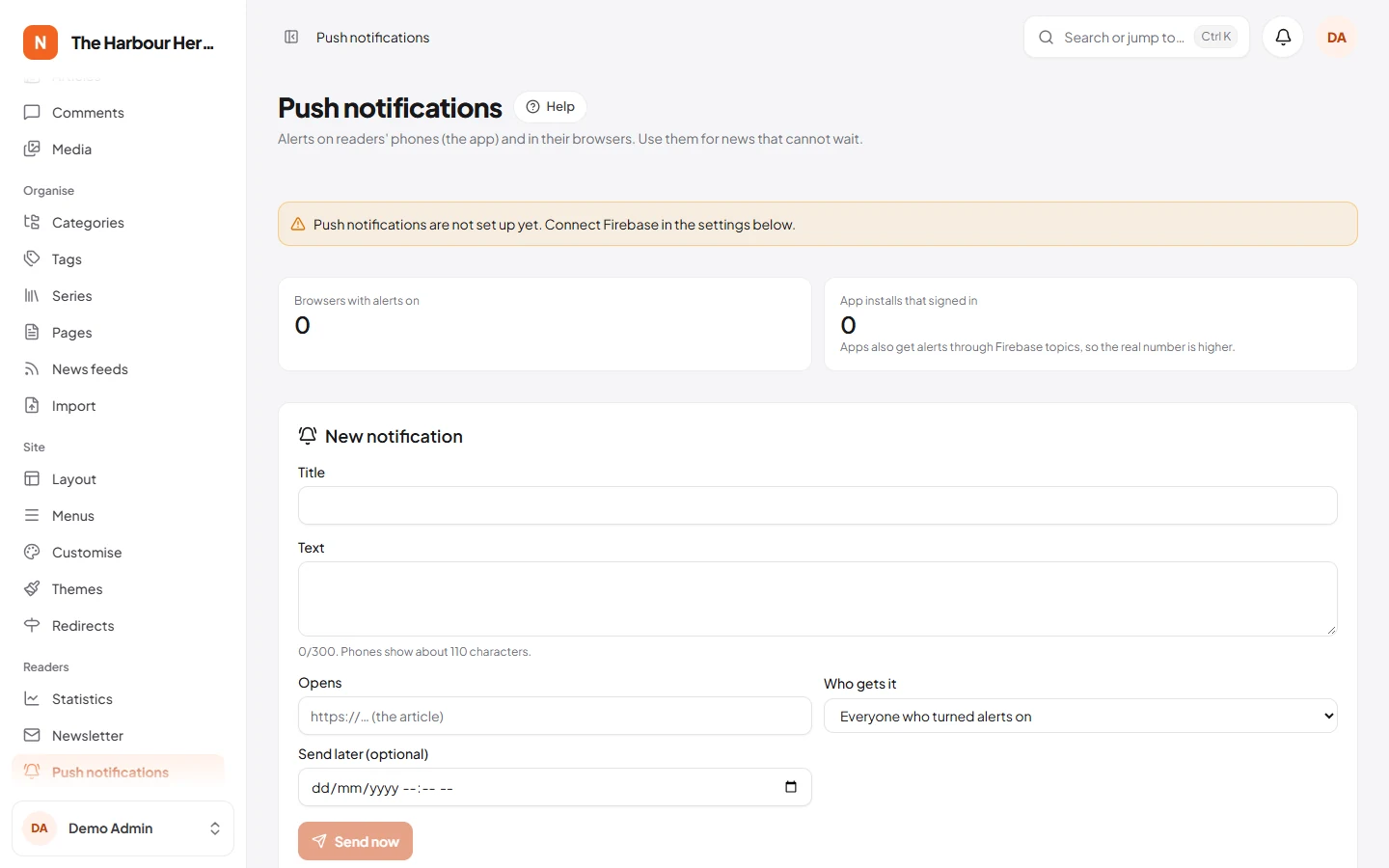
Go to Readers → Push notifications. Push uses Firebase Cloud Messaging, which is free.
Set up Firebase (admin)
- Create a project at console.firebase.google.com.
- Project settings → Service accounts → Generate new private key. Paste the whole file into Service account and save. Click Test the connection.
- For alerts on the website: in Project settings → General, add a web app and copy its API key, app ID and sender ID. In Cloud Messaging → Web push certificates, generate a key pair and copy it. Tick Offer alerts to website readers.
The mobile app gets alerts through the same Firebase project.
Sending
- Write a title and a short text, choose what it opens, and who gets it: everyone, breaking news followers, or followers of one section. Send it now or schedule it.
- In the article editor, Send push fills in the notification from the article.
- With Send an alert when an article marked "Breaking news" is published on, breaking news goes out by itself, once per article.
On the website, readers are offered alerts once, after they have read an article for a while, and can turn them off with the link in the footer.
Statistics
Readers → Statistics shows article views counted by the site itself, without cookies, for the last 7, 30 or 90 days:
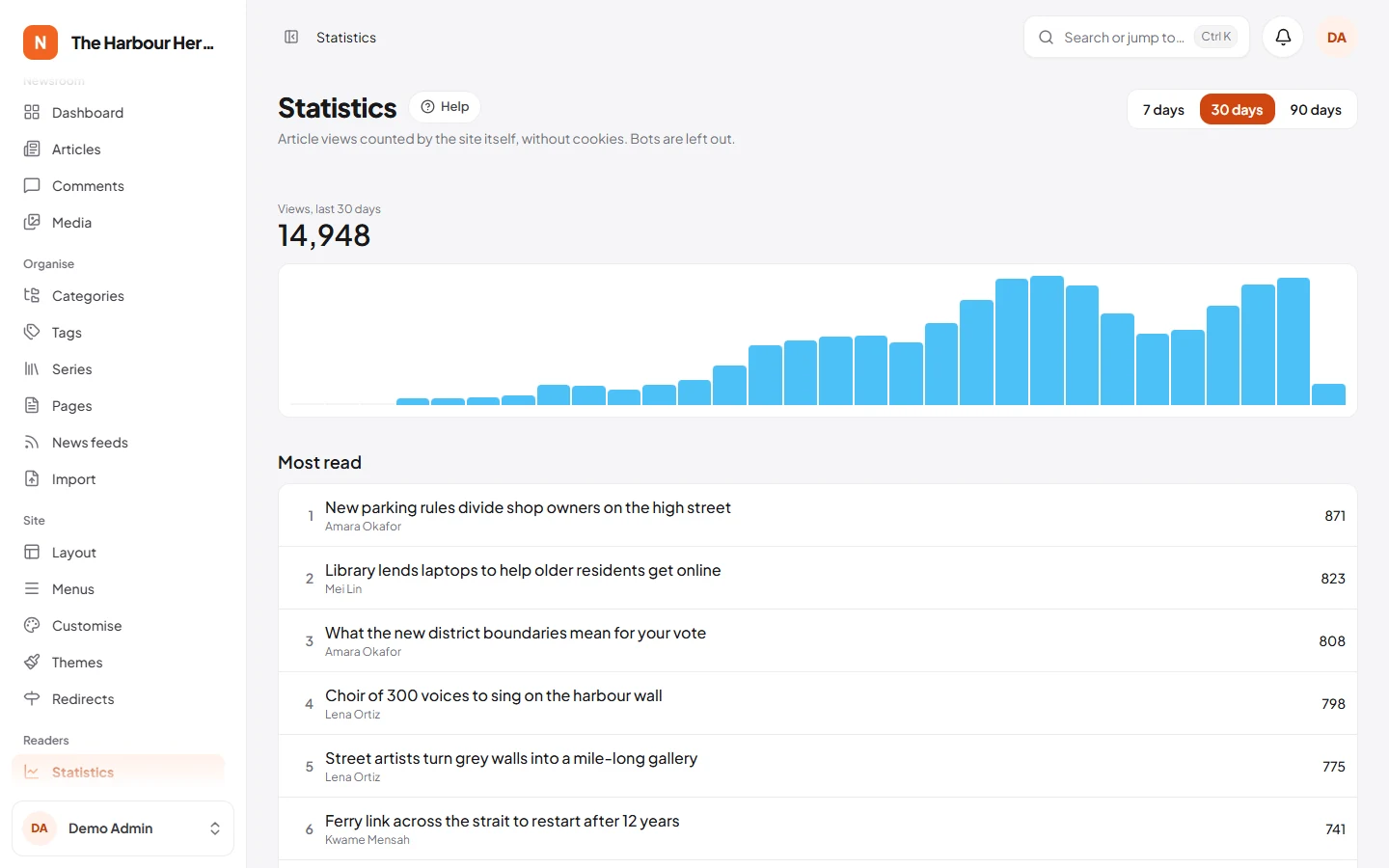
- views per day, compared with the period before
- the most read articles, authors and sections
- how readers arrive: search engines, social media, Google News, the newsletter, push notifications, other sites or directly
- phones, tablets and computers
The dashboard shows today's views, the most read articles, and what needs attention, such as articles waiting for review, comments to check, new feed stories, members and newsletter subscribers. Each person sees only the cards for work they can do.
Troubleshooting
Emails:
- No email arrives at all. Under System → Site settings → Email, click Send test email. If that fails, the message says why: usually a wrong host, port, user name or password. Your host's or email service's help pages give the right values.
- The test email works, but sign-up and newsletter emails don't. These are sent in the background, so the cron job must run: System → Cron job must say Running (Installing, step 4).
- Emails land in spam. Send from an address at your own domain, and add the SPF and DKIM records your email service gives you to your domain's DNS. Free mail addresses (Gmail, Outlook) as the sender are often marked as spam.
Newsletters:
- A scheduled newsletter doesn't go out. Sending starts within 5 minutes of the time, from the cron job. Check that it is running. Large lists go out in batches, so the last emails can follow a while later.
Push notifications:
- Test the connection fails. Paste the whole service account file again, from
{to}, from Project settings → Service accounts → Generate new private key in the same Firebase project as the app. - Nothing arrives on phones. Sending runs from the cron job every minute, so check that it is running. Then check the phone: notifications must be allowed for the app (Android 13 and newer, and iPhone, ask the reader first), and the reader must follow what you sent to (everyone, breaking news or a section).
- Android works, iPhone doesn't. Upload your Apple Push Notifications key (a
.p8file) in Firebase under Project settings → Cloud Messaging, and check that the app was built withios_capabilities: true(Building the app). - No alerts offer on the website. Fill in the web app's API key, app ID, sender ID and web push key, and tick Offer alerts to website readers. Browsers only allow alerts on
httpssites.