 NewsLoop
Media library
The media library keeps the photos, videos, audio and PDFs for your articles, pages, ads and app. This guide covers uploading, what NewsLoop does to your pictures, describing them, and choosing them in the editor. You find it under Newsroom → Media.
Uploading
- Open Newsroom → Media.
- Click Upload and choose one or more files, or drop them anywhere on the page.
- Each file shows a progress bar while it uploads. Click the cross next to it to cancel.
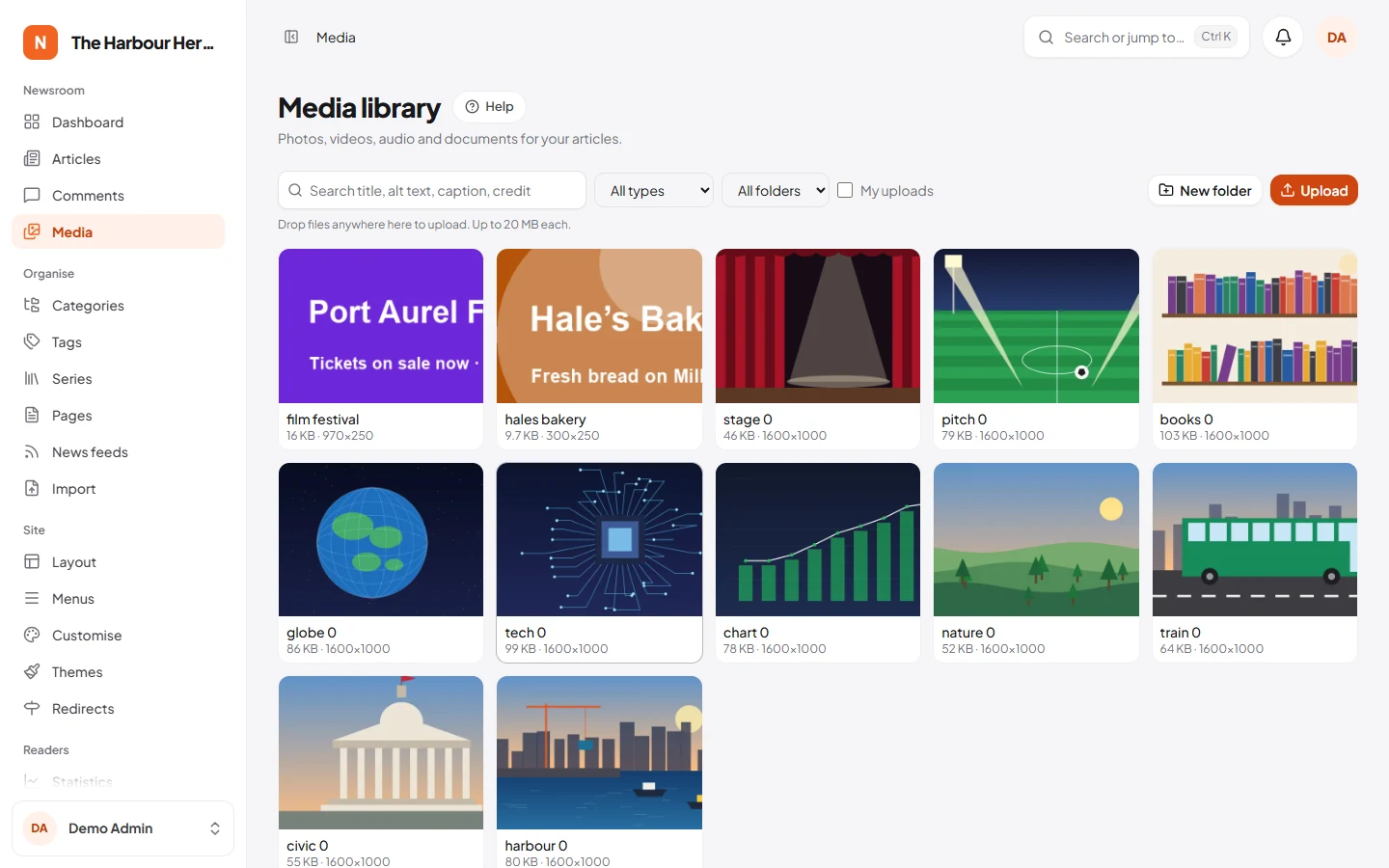
If a folder is chosen in the folder list, new files go into that folder.
These types are accepted:
- Images: JPEG, PNG, GIF, WebP and AVIF;
- Videos: MP4 and WebM;
- Audio: MP3, M4A, OGG and WAV;
- Documents: PDF.
The line under the toolbar says how large a file can be ("Up to 20 MB each"). You set the limit under System → Site settings → Media → Largest upload (MB). Your hosting can set a lower limit. The library always shows the one that really applies, so uploads never fail without a reason. Pictures can be up to 50 megapixels, which is more than any camera makes.
A new file gets its title from its file name. You can change it later.
What happens to pictures
You don't need to do anything for this. Every upload is checked and cleaned:
-
The type is read from the file itself, not from its name. A file renamed to
.jpgthat is not really a picture is refused with "This file type is not allowed." -
Files get new, random names. The name you uploaded is kept only as a label in the library.
-
Location and camera data are removed. Phones store GPS position in photos, which can give away where a reporter or source was. JPEG, PNG and WebP photos are saved again without it, turned the right way up. The switch is Remove location and camera data from photos under System → Site settings → Media. Keep it on.
-
Smaller copies are made in WebP, a format that loads fast:
- a 480×360 thumbnail for the library and small cards;
- a 960-pixel copy;
- a 1920-pixel copy.
Readers' browsers pick the size that fits their screen. Animated GIFs are not resized, so they keep moving.
Picture sizes need the cron job
The thumbnail is made at once. The 960 and 1920 copies are made in the background, a minute or so after the upload. Until they are ready, the site shows the original file. When they are ready, articles that use the picture are updated by themselves.
This background work needs the cron job from the installation guide. If large copies never appear, check that the cron job runs on the System page. See Background work without a worker.
The focal point
Cards and thumbnails often crop a photo. The focal point tells NewsLoop which part to keep in view.
- Click a photo in the library to open its details.
- Click the most important part of the photo, such as a face. You can also use the arrow keys; hold Shift for bigger steps.
- Click Save.
The smaller copies are then made again around the new point.
Alt text, caption and credit
Open a file to see and edit its details:
- Title: a name to find the file by.
- Alt text (pictures only): describes the photo for people who cannot see it. Screen readers read it aloud, and search engines use it. Pictures without it show "No alt text" in the library, and the editor warns you about a featured image without it.
- Caption: shown under the photo in articles.
- Credit: the photographer or agency, for example "Photo: Name / Agency". It is shown after the caption.
When you put a photo in an article, it uses these by default. You can type a different caption, alt text or credit for one article in the photo block, without changing the library.
The details panel also has Copy link and Open, to share or view the file itself.
Folders
Folders help you keep the library tidy, for example one per event or per photographer. They are only for you: moving a file to a folder never changes its address.
- Click New folder to add one. Only people who may edit anyone's media can add folders.
- To move a file, open it, choose a Folder and click Save.
- Use the folder list in the toolbar to see one folder, or No folder for files not in any.
Finding files
- Search looks in titles, alt text, captions and credits.
- The type list shows only Images, Videos, Audio or Documents.
- My uploads shows only the files you uploaded.
- Clear filters shows everything again.
Choosing files in the editor
You rarely need to open the library first. Wherever NewsLoop asks for a picture, it opens the library in a window: Pick a file, or upload a new one. Search and filter as usual, or upload a new file there, then click the one you want.
In the article editor:
- Featured image: click Choose a photo, or Replace and Remove once one is set.
- Insert → Photo from library adds a photo to the text. Its block has Caption, Alt text, Credit and Size (Small, Normal, Wide or Full width). Click the photo to replace it.
- Insert → Photo gallery adds a gallery. Add more photos to it, put them in order and give each one a caption.
Logos, the site icon, share images, ad pictures and the app icon are chosen the same way. See Articles for the rest of the editor.
AI alt text
If AI tools are set up, Suggest with AI next to Alt text describes the picture for you. Check the suggestion, then click Save. See AI tools.
Deleting files
- Open the file.
- Click Delete and confirm.
This removes the file and all its sizes for good. Articles that use it lose the picture, so check before you delete a photo that may still be in use. It cannot be undone.
Who can do what
- Everyone who can write articles (Contributor, Reporter, Author and up) can see the whole library and upload files.
- They can edit and delete only the files they uploaded. Other files show "You can only edit files you uploaded."
- Editors and Admins can edit and delete anyone's files and add folders.
You can change this under System → Roles.
Where files are stored
Files are kept in the public/uploads folder of your site. Updates never touch this folder. Backups on the System page include it when you tick the uploads option. See Backups.
To keep files on Amazon S3 or a service that works like it, such as Cloudflare R2, a developer can install the S3 driver (composer require league/flysystem-aws-s3-v3), fill in the AWS_ settings in .env, and add MEDIA_DISK=s3. Files uploaded before the change stay in public/uploads and keep working.
Troubleshooting
- An upload stops with "too large", or the media library says less than you set. Your server has its own limits, and the lower one applies. Raise
upload_max_filesizeandpost_max_sizein your hosting panel's PHP settings (often PHP Options or MultiPHP INI Editor), for example to 32M, then Largest upload under System → Site settings → Media. On a VPS, raiseclient_max_body_sizein Nginx too (Installing on a VPS). - "This file type is not allowed." The media library takes pictures (JPEG, PNG, WebP, GIF, AVIF), video (MP4, WebM), audio (MP3, M4A, OGG, WAV) and PDF. SVG and other files that can carry scripts are refused on purpose.
- Uploads fail with a server error. The web server must be able to write to
public/uploadsandstorage. Give them write permission (755 for folders), and check free disk space on the System page. - Picture sizes are missing for a while after upload. The smaller sizes are made in the background by the cron job. Until then, the full-size picture is shown.